
Word Online in 2026 is no longer just a “light” version of the app. It is a robust, AI-powered powerhouse. In this guide, I’m going to walk you through everything you need to know to go from a total beginner to a confident digital document creator.
Word Online Tutorial For Beginners
What is Word Online and Why Should You Use It?
Word Online is a browser-based version of Microsoft Word. Unlike the traditional software you’d install on a Windows PC or Mac, this version lives entirely on the internet.
The Major Perks for 2026 Users:
- It’s Free: You don’t need a $100+ subscription to get started. All you need is a free Microsoft account (like Outlook or Hotmail).
- Universal Access: Whether you’re on a Chromebook in a Miami classroom or a tablet on a train to NYC, your files are always there.
- Auto-Save is a Life-Saver: Forget hitting
Ctrl + Severy five minutes. Every single keystroke is saved to OneDrive instantly. - Collaboration: You can work with a colleague in Los Angeles in real-time, seeing their edits as they happen.
Getting Started: Your First Document
To start, head over to Word.new or Microsoft365.com. Once you sign in, you’ll be greeted by the Home Screen.
1. Starting from Scratch vs. Templates
You have two choices: a “Blank Document” or a “Template.” I always tell beginners: don’t reinvent the wheel. If you need to write a resume for a job or a business flyer for a local event, use the “Template Gallery.” Microsoft’s 2026 library includes thousands of designer-quality layouts that handle the margins and fonts for you.
2. The Interface (The Ribbon)
The top of your screen is called the Ribbon. In Word Online, it’s simplified to keep the “clutter” away.
- Home Tab: This is where you’ll spend 90% of your time (fonts, bolding, colors).
- Insert Tab: Use this to add “flair”—tables, pictures, or page numbers.
- Review Tab: This is where the magic happens for spellcheck and comments.
Check out the screenshot below for your reference.

Master Class: Essential Editing for Beginners
Now, let’s get into the meat of the tutorial. Writing is easy; formatting is where people usually get stuck.
Text Formatting 101
To change the look of your text, you must first highlight it.
- Bold/Italic/Underline: These are the big “B,” “I,” and “U” buttons.
- Font Styles: In 2026, Word Online includes “Cloud Fonts” that look great on any screen. Use Aptos or Calibri for a professional American corporate look.
- Alignment: Use the lines icons to center your text (great for titles) or “justify” it to make the edges even, like a newspaper.
Check out the screenshot below for your reference.


Working with Lists and Tables
Information is easier to read when it’s broken down. I use tables for everything from budget tracking to project schedules.
| Feature | Shortcut | Why use it? |
| Bullet Points | Ctrl + Shift + L | To list items without a specific order. |
| Numbered Lists | N/A | For step-by-step instructions. |
| Tables | Insert > Table | To compare data side-by-side professionally. |
Power Features: Copilot and AI Assistance
In 2026, Word Online isn’t just a typewriter; it’s an assistant. If you have a Microsoft 365 subscription, you’ll see the Copilot icon.
Even without a paid plan, you have access to Microsoft Editor. It’s like a super-charged spellchecker. It doesn’t just catch typos; it suggests ways to make your writing more “concise” or “formal.” If your email to a professor sounds too casual, the editor will flag it and offer a better alternative.
Collaboration: Working with the Team
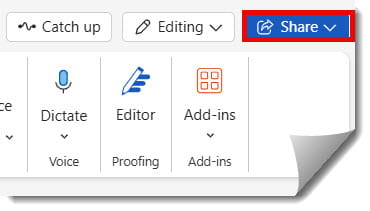
One of the most powerful things about Word Online is the Share button in the top-right corner.
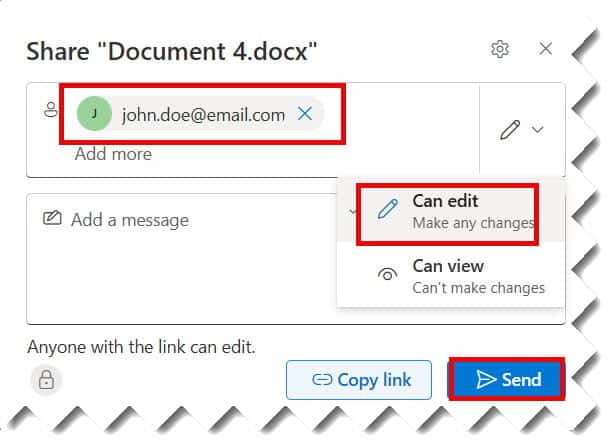
- Click Share: Type in the email address of your teammate (e.g., john.doe@email.com).
- Set Permissions: You can choose “Can Edit” or “Can View.”
- Real-time Co-authoring: You’ll see a colored cursor with their name on it. If they delete a paragraph, it disappears on your screen too.
- Comments: Instead of changing someone’s work, highlight a sentence and click “New Comment.” It’s the polite way to say, “Hey, let’s reword this.”
Saving, Exporting, and Printing
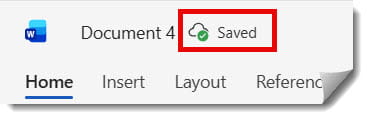
Wait, where is the “Save” button? In Word Online, there isn’t one. The status bar at the bottom will simply say “Saved to OneDrive.”
How to get your file “out” of the cloud:
If you need to email a copy to someone who doesn’t use Word, or upload a PDF to a job portal:
- Go to File > Save As.
- Select Download a Copy to keep it as a
.docxfile on your computer. - Select Download as PDF for a fixed version that no one can edit.
Pro Tips for Efficiency
To wrap up this tutorial, here are the “hacks” I use every day to speed up:
- Dictate: Too tired to type? Click the microphone icon (Dictate) and just talk. The 2026 voice recognition is incredibly accurate for American accents.
- Find and Replace (
Ctrl + H): If you wrote “Mr. Smith” 50 times and realized it should be “Dr. Smith,” this tool will change them all in one click. - Dark Mode: If you’re working late at night in a dim room, go to View > Dark Mode to save your eyes from the bright white screen.
Conclusion
Word Online is a remarkably deep tool hidden behind a simple interface. Mastering these basics will put you miles ahead of the competition. The best part? You can’t really “break” anything—so go ahead, click around, and start writing!
You may also like the following articles:
- Word Online Shortcuts List
- How To Create Document In Word Online
- How To Use Word Online For Free
- How to Check a Checkbox in Word Online
- How To Add Page Numbers In Word Online
- How to make table of content in Word Online
- How to remove blank page in Word Online?
- How to insert a cover page in Word online

My name is Carissa Gudino and I am an expert in word online, using Word Online in my day-to-day tasks. In this blog, I will share with you tips and tutorials on how to use word online to its fullest potential. I work for various clients in various countries like the United States, Canada, the United Kingdom, Australia, New Zealand, etc. My tutorials are designed to help beginners, as well as more experienced users, learn new tricks and tips on Microsoft word online. Check out more.