
In this guide, I will explain how Word Online AutoSave functions under the hood, how it differs from traditional desktop AutoRecover, how to manage Version History, and how to resolve common synchronization bottlenecks.
Word Online AutoSave
Architectural Foundations: How AutoSave Works in Word Online
To use Word Online effectively, you must understand how Microsoft handles data persistence in the browser.
When you edit a .docx document in Word for the Web, your browser maintains an active, encrypted WebSocket and HTTPS session with Microsoft cloud servers.
The Continuous Synchronization Loop
- Delta Synchronization: Word Online does not transmit the entire 50-page document across the network whenever you type a sentence. Instead, it packages differential deltas (micro-chunks of modified text and formatting) and commits them to your cloud storage container every few seconds.
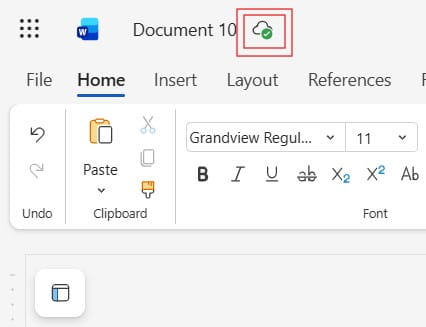
- Visual Status Indicators: In the ribbon title bar (next to your document name), Word Online provides real-time state feedback:
- Saving… Indicates that active modifications are currently being transmitted and acknowledged by the cloud storage fabric.
- Saved / Saved to OneDrive: Confirms that all pending keystrokes and structural adjustments are safely committed to the cloud container.
- Always-On Design: In Word for the Web, AutoSave is always on by default and cannot be disabled. Because web applications run inside ephemeral browser memory without local hard-drive persistence, continuous cloud auto-saving is mandatory to prevent immediate data loss if a tab is closed.
AutoSave vs. AutoRecover: Understanding the Critical Difference
Many users conflate AutoSave with AutoRecover. These are two distinct architectural features within the Microsoft Office ecosystem.
| Feature Dimension | AutoSave (Word for the Web / M365 Cloud) | AutoRecover (Word Desktop Application) |
| Storage Destination | Microsoft OneDrive, OneDrive for Business, SharePoint | Local storage directory (e.g., AppData\Roaming\Microsoft\Word) |
| Save Frequency | Continuously (every few seconds as changes occur) | Periodic snapshots (default is every 10 minutes) |
| Collaboration | Enables seamless multi-user live co-authoring | Single-user isolation; locks files on disk |
| Internet Dependency | Requires an active internet connection | Works completely offline on local drives |
| Version History | Automated cloud snapshots accessible anytime | Temporary cache deleted upon normal application exit |
Think of AutoSave as an active safety belt that prevents data loss from occurring in the first place, whereas AutoRecover is an emergency airbag intended to recover whatever work it captured prior to an application crash.
How to Verify and Monitor AutoSave Status in Word Online
Because Word Online does not have a traditional File > Save button, verifying that your work is syncing correctly requires checking the interface indicators.
Step-by-Step Status Verification
- Observe the Document Title Bar: Look at the top center-left portion of the browser header. Next to your file name (e.g.,
Executive_Summary_Q3.docx), look for the status message. - Confirm “Saved to OneDrive” or “Saved”: When this label is present, your document is synchronized.
- Change the File Name Instantly: You can click directly on the file name in the title bar to rename the file. When AutoSave is active, renaming occurs in the cloud metadata immediately without breaking active user sessions.
- Inspect the Location Breadcrumb: Clicking the document title also reveals the exact OneDrive folder or SharePoint document library where the primary file resides, allowing you to confirm path integrity.
Version History: Rolling Back Unwanted Changes
A common concern among professionals transitioning to Word Online is: “If AutoSave constantly saves everything, what happens if I accidentally delete a critical section or make a mistake?”
Because AutoSave commits changes continuously, using standard Undo (Ctrl + Z) across browser sessions is not always possible. To solve this, Microsoft pairs AutoSave with Version History.
Version History Lifecycle in Word Online:
[Active Editing Session] ---> [Periodic Cloud Milestone] ---> [Version History Catalog]
                                                                        |
                                          +-----------------------------+-----------------------------+
                                          |                                                           |
                                          v                                                           v
                                  [Inspect Previous Version]                                  [Restore Version]
Accessing and Restoring Earlier Snapshots
Version History runs quietly in the background, grouping minor keystroke deltas into clean, restorable milestones (typically created every several minutes during active editing sessions).
Branching Files: How to Create Templates Without Overwriting Originals
Bec