
In this article, I will clear up the confusion regarding Word Online’s security architecture. I will walk you through the precise steps required to lock down your files using native desktop routing, cloud permission settings, and secure PDF conversions.
How to Password Protect Word Online Document
The Core Limitation: Word for the Web vs. Word Desktop
To secure your data effectively, you must first understand the fundamental architectural difference between Microsoft’s web-based applications and its local desktop software suites.
The Plain Truth About Word Online
By design, Word for the Web (Word Online) cannot natively apply password encryption to a document. Furthermore, if you attempt to open a document that has already been password-protected using a desktop app, Word Online will refuse to render it in the browser window.
Why Does This Limitation Exist?
Microsoft’s cloud ecosystem relies heavily on automated indexing, search crawling, co-authoring engines, and data loss prevention (DLP) scanners. When a document is completely encrypted with a local password, the cloud servers cannot read the text inside. This breaks features like real-time multi-user editing and automated backups.
To bridge this gap, Microsoft forces you to use alternative protection strategies depending on whether you want a traditional password lock or modern, identity-based cloud security.
Step-by-Step Tutorial: The Desktop Routing Method
If you absolutely require a hard, unbreachable password lock that prevents anyone from viewing your file without entering a specific string of characters, you must route the cloud file through your local desktop version of Microsoft Word.
Don’t worry—you do not need to download the file manually and break your cloud syncing. Microsoft 365 handles this bridge automatically.
Step 1: Open the Document in the Desktop Application
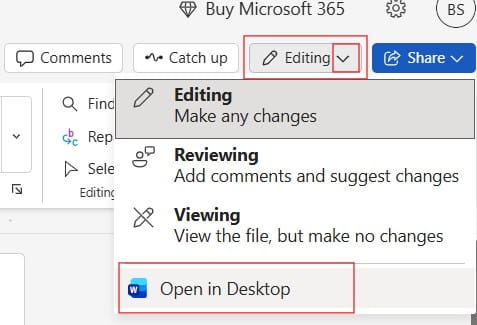
Navigate to your document within Word Online. In the top ribbon, look for the editing dropdown menu and click Open in Desktop App.
Your web browser will prompt you to launch your local installation of Microsoft Word. Click accept. The document will load locally on your machine while remaining actively synced to your cloud OneDrive storage space. Check out the screenshot below for your reference.
Once the document opens in your desktop Word application, execute the following configuration sequence:
1.Access Backstage View:Top Left Ribbon.
Click the File tab located in the extreme upper-left corner of the desktop interface to exit the editing canvas.
2.Locate Security Controls:Info Dashboard.
Select Info from the left-hand navigation pane, then click the large Protect Document box on the right.
3.Trigger Password Vault:Dropdown Selection.
Click Encrypt with Password from the contextual menu to open the system credential prompt box.
Step 3: Define a Strong, Irrecoverable Password
A dialogue box will appear asking you to type a password.
Critical Corporate Warning: Microsoft does not store passwords for personal files on its servers. If you lose this password, the data is permanently unrecoverable. Even enterprise IT administrators cannot crack an AES-256 bit file without prior implementation of advanced recovery tools like DocRecrypt.
To ensure your password is secure, follow these baseline rules:
- Use a minimum of 12 to 16 characters.
- Incorporate a mix of uppercase letters, lowercase letters, numbers, and symbols.
- Avoid predictable patterns (e.g., do not use
David2026!orWelcome1).
Type your chosen password, click OK, re-enter it exactly to verify, and click OK again.
Step 4: Sync and Lock the Document
Save the document locally (Ctrl + S) and close the desktop application.
The application will upload the newly encrypted binary file back to your OneDrive cloud space. If you or anyone else attempts to open that file via the web browser again, Word Online will display an error screen stating that the document is password-protected and must be opened exclusively using the desktop application.
Alternate Strategy: Identity-Based Cloud Permissions
If your goal is to protect your document from unauthorized eyes but you still want to leverage the convenience of the Word Online editing space, you should drop the traditional password model entirely. Instead, use identity-based access control.
Imagine you are a department head in Chicago working on an internal restructuring plan. You want to share the document with your HR coordinator, Amanda Vance, but you want to ensure she cannot pass the link along to unauthorized staff members.
Instead of setting a password, follow this permission-based workflow:
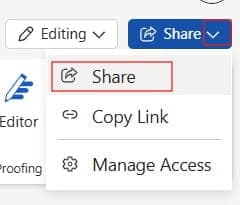
- While inside Word Online, click the Share button in the top right corner.
- Select Share from the dropdown to open the access panel.
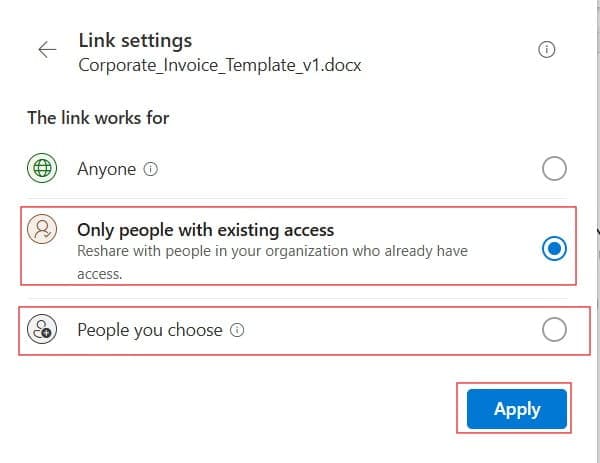
- Click the gear icon (Settings) to modify link permissions.
- Switch the setting from Anyone with the link to Specific people.
- Uncheck the Allow editing box if you require a strict read-only review environment.
- Type
amanda.vance@company.comdirectly into the recipient box and hit send.
Check out the screenshots below for your reference.
When Amanda receives the link, she must log in with her specific Microsoft account to verify her identity. If she forwards that link to anyone else, the file remains completely locked to them. This provides clean security without the hassle of managing individual file passwords.
Alternate Strategy: Exporting as a Protected PDF
If you need to distribute a finished document—such as a marketing proposal or a legal disclosure—and you want it locked down with a password, your best option is to convert your Word Online document into a secure PDF.
- Inside Word Online, click File, then select Save As.
- Click Download as PDF to convert your text document into a portable document file on your local machine.
- Because web-based PDF creators don’t usually include encryption, open the downloaded file in a tool like Adobe Acrobat or a trusted secure web portal.
- Navigate to the security tab, choose Protect Using Password, type a strong passcode, and save the file.


This gives you a universally readable file that remains securely locked down across all devices, platforms, and email clients.
Summary:
When protecting data in Word Online, your choice depends entirely on your target audience and editing workflow.
Use Desktop Routing when you need strict, unbreachable file encryption for external sharing. Use Identity-Based Permissions when you want to collaborate securely within your organization without breaking the fluid web-editing environment. Finally, lean on PDF Encryption when distributing final, read-only assets that must be secured across all platforms.
You may also like the following articles:
- How to Access Word Online
- How To Track Changes In Word Online?
- How to enable third-party cookies in word online
- How to unlock for shared use word online

My name is Carissa Gudino and I am an expert in word online, using Word Online in my day-to-day tasks. In this blog, I will share with you tips and tutorials on how to use word online to its fullest potential. I work for various clients in various countries like the United States, Canada, the United Kingdom, Australia, New Zealand, etc. My tutorials are designed to help beginners, as well as more experienced users, learn new tricks and tips on Microsoft word online. Check out more.