
Word Online is a completely free, cloud-based version of Microsoft’s flagship word processor. It runs directly inside your web browser, automatically saves your progress to the cloud, and allows for seamless, real-time collaboration. In this tutorial, I will walk you through the precise steps to access Word Online and break down your account options.
How to Access Word Online
Prerequisites: What You Need Before Starting
One of the greatest benefits of Word Online is its incredibly low barrier to entry. You do not need an expensive corporate enterprise license or a high-powered computer to use it. However, you do need to have a couple of foundational pieces in place before logging in.
A Valid Microsoft Account
To use any Microsoft 365 web application, you must possess a Microsoft account. This account acts as your secure digital identity and links directly to your cloud storage space. You can use any of the following:
- Personal Accounts: Free accounts ending in
@outlook.com,@hotmail.com, or@live.com. - Work or School Accounts: Accounts provisioned by your employer or academic institution (e.g.,
david.vance@company.com).
A Modern Web Browser
Word Online relies on modern web standards to render complex documents smoothly. To ensure you do not experience interface lag or layout clipping, use the latest version of one of these supported browsers:
- Microsoft Edge
- Google Chrome
- Apple Safari
- Mozilla Firefox
Step-by-Step Tutorial: Accessing Word Online from a Browser
Let’s walk through the exact sequence required to launch your cloud workspace. This method works identically whether you are operating a Windows PC, a Mac, or a Chromebook.
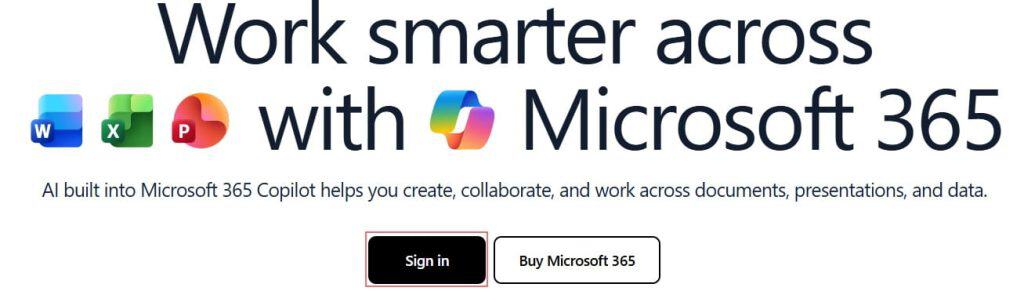
Open your preferred web browser, navigate to the official website address at office.com (or microsoft365.com), and locate the prominent Sign In button on the landing homepage. Check out the screenshot below for your reference.
Step 2: Authenticating Your Identity
Enter your Microsoft account email address, click Next, then enter your password.
Security Professional Note: If you are accessing your account from a corporate network or have basic security configurations enabled, this is the stage where you will be prompted to complete a Multi-Factor Authentication (MFA) challenge via a phone text code or the Microsoft Authenticator app. Always complete this step to safeguard your cloud files.
Step 3: Launching the Word App Canvas
Once your centralized Microsoft 365 dashboard loads, cast your eyes to the navigation bar running vertically down the left-hand side of your screen. Click on the familiar blue Word icon.
Alternatively, you can click on the App Launcher icon (the grid of nine dots, often called the “waffle menu”) in the extreme upper-left corner of the browser window. A dropdown grid will appear; select Word from that menu to open the dedicated Word Online welcome screen.
Alternative Entry Points: Bypassing the Main Dashboard
If you want to save time and streamline your daily workflow, you do not have to navigate through the main Microsoft 365 portal every single time. Microsoft has built two fast-track entry points directly into the web ecosystem.
Direct Application URL Link
You can bypass the general dashboard entirely by adding a dedicated bookmark to your browser toolbar. Navigating directly to word.new inside your browser’s address bar tells Microsoft’s cloud engine to automatically authenticate your active session and instantly provision a brand-new, blank Word Online document in a matter of seconds.
Launching Directly from OneDrive Cloud Storage
Because every Word Online document lives inside your cloud storage, you can start your work sessions directly from the OneDrive interface.
- Log in to your OneDrive account portal (
onedrive.live.com). - Navigate to the specific folder where you want your new document to live.
- Click the + Add new button in the upper-left corner.
- Select Word document from the contextual dropdown menu. The cloud app will open your file immediately within that exact directory.
Setting Up Word Online for Offline Access
A major criticism of web-based