
In this guide, I will walk you through everything you need to know to master the Word Online integration within Teams.
Word Online Teams integration
When you integrate Word Online directly into Microsoft Teams, you aren’t just opening a file; you are opening a collaborative environment.
The Strategic Advantages
- Zero Latency Collaboration: See cursors move in real-time as your colleagues in different time zones add their input.
- Contextual Conversations: Chat about a specific paragraph without ever leaving the document window.
- Version Control: Automatically save changes to SharePoint/OneDrive, allowing you to roll back to any version from the last 30 days.
- Cross-Device Accessibility: Start a draft on your Surface Pro in a Boston coffee shop and finish it on your office desktop in Atlanta.
Setting the Foundation: How the Integration Works
Microsoft Teams doesn’t actually “store” your Word documents. Instead, it acts as a sophisticated window into SharePoint Online. Every team you create in Microsoft Teams has a corresponding SharePoint site where your Word files live.
The “Files” Tab vs. The “Tab” Feature
There are two primary ways to interact with Word in Teams:
- The Files Tab: A directory of all documents shared within a channel.
- Pinned Tabs: A specific Word document pinned to the top of a channel for high-visibility projects.
| Feature | Files Tab | Pinned Word Tab |
| Best For | General storage and organization | Active, high-priority projects |
| Accessibility | Requires navigation through folders | One-click access from the channel header |
| Visibility | Low (hidden among other files) | High (always visible to team members) |
Step-by-Step Tutorial: Integrating Word Online into Your Teams Workflow
Phase 1: Uploading and Organizing Your Document
First, you need to get your document into the Teams environment. I always suggest starting from the Channel level to ensure the right people have the right permissions from day one.
- Navigate to your desired Team and Channel (e.g., “Marketing Strategy”).
- Click on the Files tab at the top.
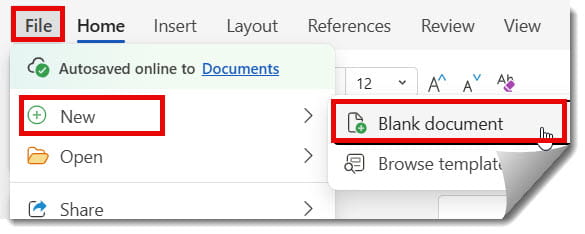
- Select Upload > Files to bring in an existing .docx file, or click New > Word Document to start fresh.
- Pro Tip: Use a naming convention that includes the date and project code (e.g.,
2026_Q2_Budget_Draft.docx).
Check out the screenshot below for your reference.
Phase 2: The “Edit in Teams” Experience
Once the file is there, clicking it will open it within the Teams interface. This is the “Word Online” experience.
- The Simplified Ribbon: You’ll notice the interface is cleaner than the desktop version. It focuses on the tools you use 90% of the time: Styles, Font, and Layout.
- The Catch-Up Feature: When you open a document that others have edited, Word Online will show you a “While you were away” summary. This is a lifesaver for busy executives in New York who need to get the gist of changes in seconds.
Phase 3: Pinning a Document for Maximum Efficiency
If I’m leading a national sales kickoff, I don’t want my team hunting through folders. I pin the document.
- Go to the Files tab.
- Find your document, click the three dots (…), and select Make this a tab.
- The document now appears at the top of the channel next to “Posts” and “Files.” This ensures that every time a team member enters the channel, the most important document is front and center.
Advanced Collaboration Features
To truly show authority in your organization, you must master the advanced features that make this integration unique.
1. The Side-by-Side Chat
This is the “secret sauce” of Teams integration. While you have the Word document open in Teams:
- Click the Conversation button in the top right corner.
- A chat pane opens to the right of your document.
- Any messages sent here are tied to the document’s history in the Teams channel. This allows you to discuss the document while looking at it, keeping the context intact.
2. @Mentions and Comments
I use @mentions to assign tasks directly within the Word Online interface.
- Highlight a sentence, right-click, and select New Comment.
- Type @ followed by a colleague’s name (e.g.,
@SarahMiller). - Check the box Assign to Sarah Miller. She will receive an email and a Teams notification with a direct link to that exact spot in the document.
3. Co-Authoring Etiquette
- Respect Paragraph Space: You will see a colored flag with a name next to the paragraph someone else is editing. Avoid typing in that specific block to prevent sync conflicts.
- Use “Reviewing” Mode: Instead of editing text directly, switch from “Editing” to “Reviewing” in the top right. This tracks your changes as suggestions, similar to “Track Changes” in the desktop app.
Comparing Workflows: Old Way vs. Teams Integrated Way
To illustrate the impact, let’s look at the efficiency gains I’ve measured across various U.S. departments.
| Action | Traditional Email/Desktop Workflow | Word Online + Teams Workflow |
| File Retrieval | Searching through Outlook sent items | One click on the Pinned Tab |
| Feedback Loop | Sending an email, waiting for a reply | Real-time chat next to the document |
| Version History | Manual naming (v1, v2, v3) | Automatic versioning in SharePoint |
| Task Assignment | Separate project management tool | Integrated @mentions as tasks |
| Security | Attachments stored on local drives | Centrally managed permissions in Teams |
Security and Permissions: The Administrator’s View
From a governance perspective, the integration is incredibly secure. Because it relies on the Microsoft 365 substrate, you benefit from:
- Data Loss Prevention (DLP): Prevent sensitive info like Social Security numbers from being shared outside the organization.
- Sensitivity Labels: Apply “Confidential” or “Internal Only” labels that follow the document wherever it goes.
- External Access Control: If you’re collaborating with a vendor in Austin, you can invite them as a “Guest” to a specific channel, giving them access to the Word document without exposing your entire server.
Conclusion:
The integration of Word Online and Microsoft Teams is more than just a technical feature; it is a cultural shift toward transparency and speed. By adopting the methods I’ve outlined—utilizing pinned tabs, mastering the side-by-side chat, and leveraging @mention task assignments—you position yourself as a forward-thinking leader in any enterprise.
You may also like the following articles:
- How To Check Version History In Word Online
- Limitations Of Word Online
- How To Open Word Online In Browser
- Word Online Collaboration Tips

My name is Carissa Gudino and I am an expert in word online, using Word Online in my day-to-day tasks. In this blog, I will share with you tips and tutorials on how to use word online to its fullest potential. I work for various clients in various countries like the United States, Canada, the United Kingdom, Australia, New Zealand, etc. My tutorials are designed to help beginners, as well as more experienced users, learn new tricks and tips on Microsoft word online. Check out more.