
In this tutorial, I will walk you through how to find, customize, structure, and export a cover letter using Word Online templates—ensuring your application looks polished, reads with authority, and clears technical screening filters.
Word Online Cover Letter Template
Why Use Microsoft Word Online for Cover Letters?
Job applications move quickly. Relying on a locally installed desktop application tied to a single machine can slow down your workflow and introduce version control headaches.
Using Word for the Web offers distinct advantages:
- Standardized Document Structure: Microsoft’s official templates utilize native paragraph styles and clean margins, preventing the hidden layout corruption common with third-party graphic design tools.
- Coordinated Application Suites: Word Online templates often feature matching résumé and reference sheet designs, allowing you to maintain a consistent visual identity across your entire application package.
- Universal Accessibility: Your drafts remain accessible across corporate laptops, home desktops, and tablets via OneDrive, ensuring you can tailor a letter minutes after a new position is posted.
How to Access and Select Cover Letter Templates in Word Online
Accessing the template library in Word Online is straightforward and requires only a standard Microsoft account.
Step-by-Step Access Sequence:
- Navigate to Office.com (or Word.new) in any modern web browser and log in with your Microsoft credentials.
- Select the Word icon from the left navigation rail.
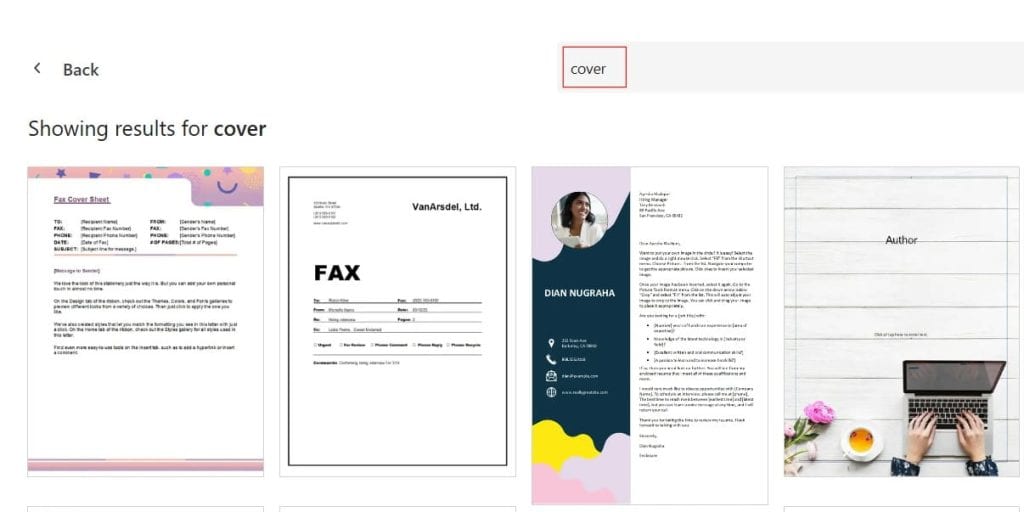
- On the Word landing page, locate the top template gallery and click More templates (or Explore all templates).
- In the search bar, type
Cover Letterand press Enter. - Browse the categorized results. When you select a template, Word Online automatically clones it into your personal OneDrive storage and opens the document in edit mode.
Check out the screenshot below for your reference.
Choosing the Right Template Style for Your Industry
Selecting the correct template style sets the appropriate tone before a hiring team reads a single word. Different industries maintain distinct expectations regarding document presentation.
| Template Category | Visual Characteristics | Best Suited Industries | ATS Compatibility Rating |
| Traditional / Clean | Standard margins, serif/sans-serif fonts, no graphics, strict monochrome. | Finance, Legal, Higher Education, Federal / Defense Contracting | Highest (100%) |
| Modern Minimalist | Clean horizontal dividers, subtle accent color in header, clear typography. | Tech, Enterprise Software, Marketing, Consulting, Healthcare | High (98%) |
| Creative / Graphic | Colored sidebars, graphic headers, multi-column layouts, icon bullets. | Graphic Design, Media Production, Fashion, Creative Arts | Moderate (Requires Caution) |
Architectural Tip on Multi-Column Layouts: If you are submitting your application through an automated enterprise job portal (such as Workday, Taleo, or Greenhouse), avoid templates with split-column sidebars. While visually striking to the human eye, some legacy ATS parsers read multi-column documents horizontally across columns, scrambling your sentences into unreadable fragments.
Anatomy of an ATS-Compliant Cover Letter
A standard business cover letter follows a disciplined five-part structure. When filling out your Word Online template, ensure each structural element is present and organized in sequential order.
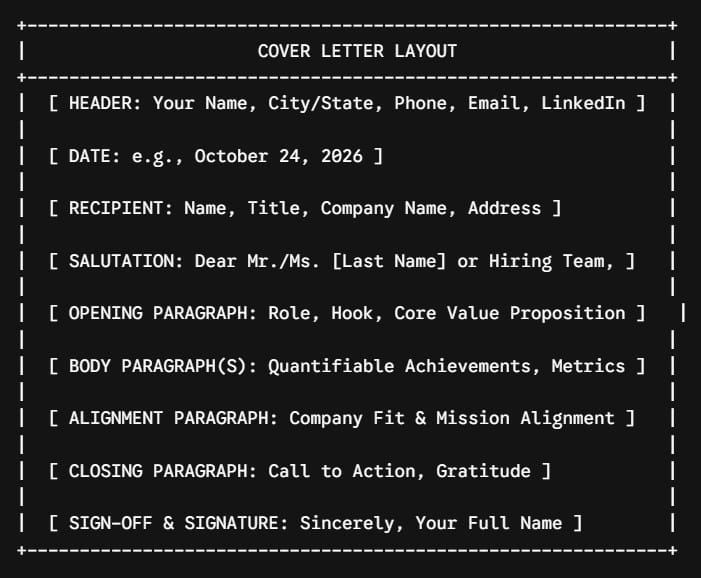
1. The Contact Header
Your header should mirror the exact design, font styling, and contact details displayed on your résumé:
- Full Name: Prominently formatted in bold (14–18 pt font).
- Location: City and State (e.g., Austin, TX or Chicago, IL). Street addresses are no longer required.
- Direct Contact: Mobile phone number and a professional email address.
- Digital Footprint: Clean LinkedIn profile URL or portfolio link.
2. Recipient Information & Salutation
Address a specific individual whenever possible. If the job description does not list the hiring manager:
- Conduct a targeted search on professional networking sites for the department head (e.g., Director of Technical Operations).
- Avoid outdated salutations such as “To Whom It May Concern” or “Dear Sir/Madam”. Instead, use:
- Dear [Hiring Manager Name],
- Dear [Department Name] Hiring Team,
- Dear Search Committee,
3. The Hook & Value Proposition (Opening Paragraph)
State the exact position you are targeting, explain how you discovered the opportunity, and deliver a concise “thesis statement” highlighting 1–2 of your core competencies.
4. Evidence of Impact (Body Section)
Rather than repeating the bullet points from your résumé, use this space to tell the story behind your greatest career accomplishments. Highlight measurable outcomes: revenue expanded, processing times accelerated, or operating costs reduced.
5. Organizational Alignment & Forward-Looking Close
Articulate your understanding of the employer’s operational objectives. Close with an affirmative call to action, thanking the team for their time and expressing enthusiasm for an introductory conversation.
Step-by-Step Tutorial: Customizing Your Template in Word Online
Once your chosen template is open in Word Online, follow these configuration steps to adjust typography, modify layout defaults, and populate content.
Step 1: Rename the Cloud File
By default, templates open with generic names such as Document1 or Template-Cover-Letter. Click the document title located in the top application bar and rename it using a standardized naming convention:
FirstName_LastName_Cover_Letter_TargetCompany.docx- Example:
Taylor_Morgan_Cover_Letter_Apex_Logistics.docx
Step 2: Harmonize Fonts and Color Themes
If your template includes preset accent colors that clash with your personal branding:
- Navigate to the Home tab.
- Select the accent text elements (such as horizontal rules or header banners).
- Choose a reserved, professional accent color (Navy, Slate Gray, or Charcoal).
- Verify that primary body copy uses an industry-standard font family (e.g., Calibri, Arial, Georgia, or Aptos).
Step 3: Populate Template Fields
Most Microsoft Word Online templates utilize bracketed prompt fields or placeholder copy (such as [Recipient Name] or Lorem Ipsum text).
- Carefully highlight each placeholder before typing to ensure no lingering template brackets or default Latin text remain in the final document.
Step 4: Configure Line Spacing and Paragraph Margins
To ensure your letter fits cleanly on exactly one single page:
- Click the Layout tab on the ribbon.
- Select Margins and verify it is set to Normal (1 inch on all sides) or Narrow (0.5 inches) if text density demands it.
- Under the Home tab, click the Line Spacing tool. Set line spacing between 1.0 and 1.15, with 0 pt before and 4–6 pt after paragraphs.
Step 5: Run Microsoft Editor
Word Online includes built-in AI writing assistance:
- Navigate to the Home tab and click Editor.
- Review suggestions for spelling, grammatical accuracy, conciseness, and formality.
- Ensure your readability score remains crisp and accessible.
Word Online Formatting Best Practices
When editing templates in a cloud browser environment, specific technical best practices ensure your formatting translates accurately across platforms:
- Use Native Paragraph Breaks (Not Manual Blank Lines): Instead of hitting the
Enterkey two or three times between sections, configure paragraph spacing viaLayout > Paragraph Spacing After. This keeps vertical margins consistent across different screen sizes and rendering engines. - Avoid Nested Floating Objects: Do not embed floating text boxes inside headers or margins. Floating shapes can shift unexpectedly when a recruiter opens the document on a mobile device or third-party office suite.
- Leverage the Ruler Tool: Enable the browser ruler via
View > Rulerto verify tab stops and margin alignments visually before finalizing text.
Standard Cover Letter Formatting Rules
To keep your document aligned with American business conventions, adhere to the standard specifications below:
| Formatting Attribute | Standard Specification | Acceptable Range |
| Page Length | Exactly 1 Page | Never exceed 1 page for standard industry roles |
| Word Count | 250–350 Words | 200–400 Words |
| Top/Bottom Margins | 1.0 Inch | 0.75 – 1.0 Inch |
| Left/Right Margins | 1.0 Inch | 0.75 – 1.0 Inch |
| Body Font Size | 10.5 pt or 11 pt | 10 pt – 12 pt |
| Header Font Size | 16 pt (Bold) | 14 pt – 20 pt |
| Line Spacing | 1.15 | 1.0 – 1.15 |
| File Format for Upload | PDF (.pdf) | DOCX (.docx) if specifically requested |
Exporting, Sharing, and Managing Document Versions
Once your cover letter is written and proofread, you must export it properly to ensure the recipient sees the exact layout you intended.
1. Downloading as a PDF (Recommended)
Exporting as a PDF locks down fonts, visual spacing, and styling so your letter renders identically on Windows, macOS, iOS, and Android devices:
- Click File in the upper left corner.
- Select Save As.
- Choose Download as PDF.
- Save the file locally using your standardized naming syntax:
FirstName_LastName_Cover_Letter.pdf.
2. Downloading as a DOCX
If an employer’s portal explicitly instructs applicants to upload only Microsoft Word documents:
- Click File > Save As.
- Select Download a Copy.
- Verify that the downloaded file opens correctly without altered line wraps.
Frequently Asked Questions (FAQs)
Are Microsoft Word Online templates free to use?
Yes. Anyone with a free Microsoft account can access Word for the Web and its core template library at no charge. Certain premium template styles may require an active Microsoft 365 Personal or Family subscription.
Can Applicant Tracking Systems (ATS) read PDF cover letters generated by Word Online?
Yes. When you download a PDF from Word Online, it outputs a text-based, searchable PDF containing clean semantic layers. ATS software can easily extract and parse your text.
Should I include my full physical home address on the template?
No. In modern US hiring practices, listing your full street address is unnecessary and takes up valuable vertical space. Including your City, State, and Zip Code is sufficient.
How do I insert a physical signature into my Word Online cover letter?
You can sign a blank piece of paper, take a clear photo, crop it, and use Insert > Picture to place the image above your typed name. However, in standard digital business correspondence, simply typing your full legal name below a professional closing (such as Sincerely,) is completely acceptable.
Summary and Key Takeaways
Leveraging Microsoft Word Online cover letter templates gives you a structured, cloud-accessible foundation for building job applications that stand out:
- Select Practical Designs: Choose clean, single-column templates that balance visual professionalism with ATS compatibility.
- Maintain Visual Consistency: Match the typography, accent colors, and contact header of your cover letter to your résumé.
- Focus on Brevity: Keep the entire letter between 250 and 350 words, fitting neatly onto a single page with standard 1-inch margins.
- Export to PDF: Download your finished letter as a PDF to preserve your layout, line wraps, and typography across all hiring platforms.
You may also like the following articles:

My name is Carissa Gudino and I am an expert in word online, using Word Online in my day-to-day tasks. In this blog, I will share with you tips and tutorials on how to use word online to its fullest potential. I work for various clients in various countries like the United States, Canada, the United Kingdom, Australia, New Zealand, etc. My tutorials are designed to help beginners, as well as more experienced users, learn new tricks and tips on Microsoft word online. Check out more.