
In this comprehensive guide, I will walk you through how to adjust line spacing in Word Online, customize paragraph spacing options, set default line spacing values, and avoid the most common formatting errors that trip up document creators.
Word Online Line Spacing
Understanding Line Spacing and Paragraph Spacing
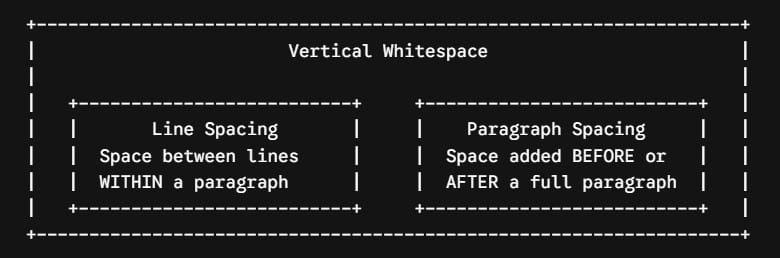
Before diving into the steps inside Word Online, it is important to distinguish between line spacing and paragraph spacing. While both control vertical whitespace, they govern different structural elements of your typography.
1. Line Spacing (Leading)
Line spacing—traditionally known in typography as leading—is the vertical distance between baselines of text within the same paragraph.
- Single Spacing (1.0): Tight spacing where lines sit directly above one another. Great for dense tables, sidebars, and multi-column newsletters.
- 1.15 Spacing: The modern default across Microsoft Office applications. It provides just enough breathing room to improve digital readability on screens without bloating document page counts.
- 1.5 Spacing: A balanced middle ground that enhances readability for printed reports and business reviews.
- Double Spacing (2.0): Standard for academic manuscripts, legal drafts, and documents intended for physical markup and proofreading.
2. Paragraph Spacing (Before & After)
Paragraph spacing controls the vertical cushion added before the first line or after the last line of a paragraph.
Key Design Insight: Many writers press the
Enterkey twice to create space between paragraphs. This is a bad habit that creates unmanaged, blank paragraph markers, leading to awkward page breaks and misaligned headings. The correct approach is setting a dedicated “Space After” value (such as 6 pt or 8 pt).
Standard Line Spacing Presets in Word Online
Word Online offers quick access to the most common typographic spacing standards directly from the main ribbon interface.
| Line Spacing Option | Value Multiplier | Typical Document Use Case | Visual Density |
| Single | 1.0x | Tables, callout boxes, single-spaced letters, dense lists. | High |
| 1.15 Spacing | 1.15x | Default corporate memos, internal documentation, web content. | Balanced (Default) |
| 1.5 Spacing | 1.5x | Business proposals, formal executive summaries, manuscript drafts. | Comfortable |
| Double | 2.0x | Academic papers (APA/MLA format), legal briefs, proofreading drafts. | Open |
Step-by-Step: How to Change Line Spacing in Word Online
Adjusting line spacing across a section or an entire document in Word Online requires just a few clicks. Follow this structured process to apply exact spacing values.
1. Select Your Target Text:10 Seconds.
Highlight the specific paragraphs you wish to format. To change the line spacing across your entire document, press Ctrl + A (Windows) or Cmd + A (Mac) to select all text.
2. Navigate to Line Spacing Options: Ribbon Navigation.
Ensure you are on the Home tab in the top ribbon. Look for the Line & Paragraph Spacing icon (represented by vertical arrows next to horizontal lines) located in the Paragraph section.
3. Apply a Preset or Open Custom Options: Selection.
Click the icon to reveal the drop-down menu. Select one of the standard line spacing presets (1.0, 1.15, 1.5, or 2.0) for immediate application.
4. Configure Custom Paragraph Spacing: Precision Tuning.
For precise point-based control, click Line Spacing Options… at the bottom of the drop-down menu to open the Line Spacing dialog box.
Advanced Formatting: Customizing Line & Paragraph Spacing Options
When working on formal publications or corporate templates, standard presets may not meet exact branding guidelines. The Line Spacing Options dialog box gives you granular control over point values.
1. Understanding Custom Measurement Options
Inside the custom dialog box, Word Online allows you to configure specific behavior:
- Single / 1.5 / Double: Applies standard fixed proportional multipliers.
- Multiple: Allows you to enter custom fractional values (e.g., entering
1.2or1.35to create subtle custom line heights tailored to specific corporate fonts). - At: Specifies the exact multiplier value when using the “Multiple” setting.
2. Managing “Space Before” and “Space After”
To maintain consistent vertical rhythms without pressing Enter repeatedly:
- Set Space Before to
0 ptfor standard body text. - Set Space After to
6 ptor8 pt. This automatically pushes the next paragraph down slightly while keeping your line spacing clean.
3. The “Don’t Add Space Between Paragraphs” Toggle
When creating bulleted or numbered lists, having an 8 pt gap after every single bullet point looks disjointed.
Check the box labeled “Don’t add space between paragraphs of the same style”. This keeps list items tightly grouped together while preserving the 8 pt spacing cushion after the final list item.
Line Spacing Guidelines for Popular Document Formats
Different professional document types require specific line spacing rules. Applying the correct standard ensures your document complies with industry expectations.
1. Academic Papers (APA, MLA, Chicago)
- Line Spacing: Strict Double Spacing (
2.0). - Paragraph Spacing:
0 ptBefore and0 ptAfter. - Paragraph Alignment: First-line indent of 0.5 inches applied across all body text. Never leave extra blank lines between double-spaced paragraphs.
2. Modern Business Proposals & Executive Summaries
- Line Spacing:
1.15or1.2Multiple spacing. - Paragraph Spacing:
0 ptBefore,6 ptor8 ptAfter. - Paragraph Alignment: Flush-left (block format) with zero first-line indentation. The space after each paragraph provides visual separation.
3. Technical Documentation & Manuals
- Line Spacing: Single (
1.0) or1.05. - Paragraph Spacing:
0 ptBefore,4 ptor6 ptAfter. - Structure: Tighter line heights allow complex code blocks, figures, and technical tables to fit logically onto reference pages without excessive scrolling.
Common Line Spacing Pitfalls and How to Fix Them
Even experienced writers encounter line spacing glitches when pasting text from external sources into Word Online. Here is how to fix the most common errors:
Pitfall 1: Double Spacing Caused by Hidden Line Breaks
When pasting text copied from web pages or PDF documents, Word Online may import hard line breaks (Shift + Enter or manual carriage returns) at the end of every line instead of true paragraphs.
- The Symptom: Text looks unnaturally spaced out, and line spacing settings do not apply uniformly.
- The Fix: Highlight the pasted text, click the Clear Formatting icon on the Home tab ribbon, and re-apply your target paragraph style.
Pitfall 2: Headings Detached from Body Text
If a main section heading sits at the very bottom of a page while its accompanying paragraph starts on the next page, your paragraph spacing settings need adjustment.
- The Fix: Increase the Space Before value on the heading (e.g., set to
12 ptor18 pt) and keep Space After compact (e.g.,4 pt). This anchors the heading visually closer to the text that follows it.
Pitfall 3: Inconsistent Spacing Across Co-Authored Documents
When multiple team members collaborate on a document in Word Online, different authors often paste text using varied line spacing presets.
- The Fix: Use built-in Word Styles (
Heading 1,Heading 2,Normal) rather than manual formatting. When everyone applies the uniform “Normal” style, line spacing remains consistent across the entire document.
Best Practices for Document Typography in Word Online
To keep your documents looking professional and readable, adhere to these formatting practices:
- Avoid Pressing Enter Twice: Use point-based Space After paragraph settings to separate paragraphs instead of inserting empty return lines.
- Match Line Spacing to Font Size: Larger font sizes (e.g., 18 pt section headers) require less proportional line spacing than smaller body text (e.g., 10 pt body copy).
- Leverage Styles for Bulk Formatting: Instead of manually setting line spacing on every single paragraph, update the default Normal style in your document to apply line spacing globally.
- Review Mobile and PDF Exports: Before sending a document to a client or executive, export it to PDF or view it in Reading View to verify that page breaks and line spacing render smoothly across screen sizes.
Summary & Key Takeaways
Proper line spacing transforms dense walls of text into scannable, visually comfortable documents. By mastering the line spacing tools in Word Online, you can ensure your business proposals, reports, and academic papers reflect high professional standards.
Key Takeaways
- Distinguish Line vs. Paragraph Spacing: Line spacing controls distance between text lines within a paragraph; paragraph spacing controls the cushion before and after paragraphs.
- Use 1.15 as a Default: The 1.15 multiplier provides optimal screen readability for modern corporate documents.
- Eliminate Manual Enter Keys: Use “Space After” (6 pt – 8 pt) for clean paragraph separation.
- Apply “Don’t Add Space” to Lists: Keep bulleted and numbered items tightly grouped by enabling style-matching spacing rules.
You may also like the following articles:
- How to put spacing between bullet points in Word Online?
- How do you eliminate extra spacing in Word Online
- Word Online AutoSave

My name is Carissa Gudino and I am an expert in word online, using Word Online in my day-to-day tasks. In this blog, I will share with you tips and tutorials on how to use word online to its fullest potential. I work for various clients in various countries like the United States, Canada, the United Kingdom, Australia, New Zealand, etc. My tutorials are designed to help beginners, as well as more experienced users, learn new tricks and tips on Microsoft word online. Check out more.