
In this comprehensive article, I will walk you through exactly how to bridge that gap and smoothly transition your documents from Word Online into your desktop version of Microsoft Word without losing your place, your cloud connectivity, or your mind.
How to Open Word Online in Desktop App
Check out: Word Online vs Desktop Word
Method 1: The Native “Open in Desktop App” Command (The Fastest Way)
Microsoft has built a direct, one-click bridge right into the web browser interface. If you are already looking at a document inside Word Online, this is your absolute best path forward.
Step 1: Locate the Ribbon Options
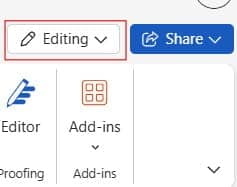
Look closely at the top toolbar (the Ribbon) inside your Word Online browser tab. Near the center or slightly to the right of the text styling options, you will see a button labeled Editing. Check out the screenshot below for your reference.
Step 2: Trigger the Application Switch
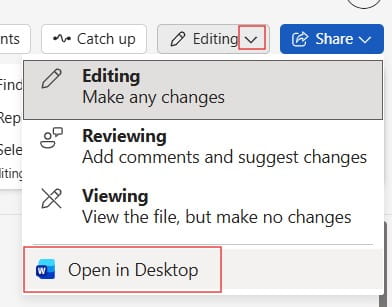
Click on the Editing dropdown button. This action reveals three distinct structural options for how you want to interact with the file:
- Editing: Work directly in the browser window with instant saving.
- Reviewing: Add comments and track changes without altering the core text layout.
- Open in Desktop App: This is our target. Click this option. Check out the screenshot below for your reference.
Step 3: Acknowledge the Security Protocol Prompt
The moment you click that button, your web browser (whether you use Microsoft Edge, Google Chrome, or Apple Safari) will pause. A security prompt will pop up on your screen asking something along the lines of: “Open Word?” or “Allow this site to open the link with Microsoft Word?”
Pro-Tip: Do not freak out when this appears. This is a standard operating system safety sandbox rule checking to make sure a rogue website isn’t executing local programs on your machine. Click Open, Allow, or Yes to grant the permission.
Step 4: Watch the Cloud Magic Happen
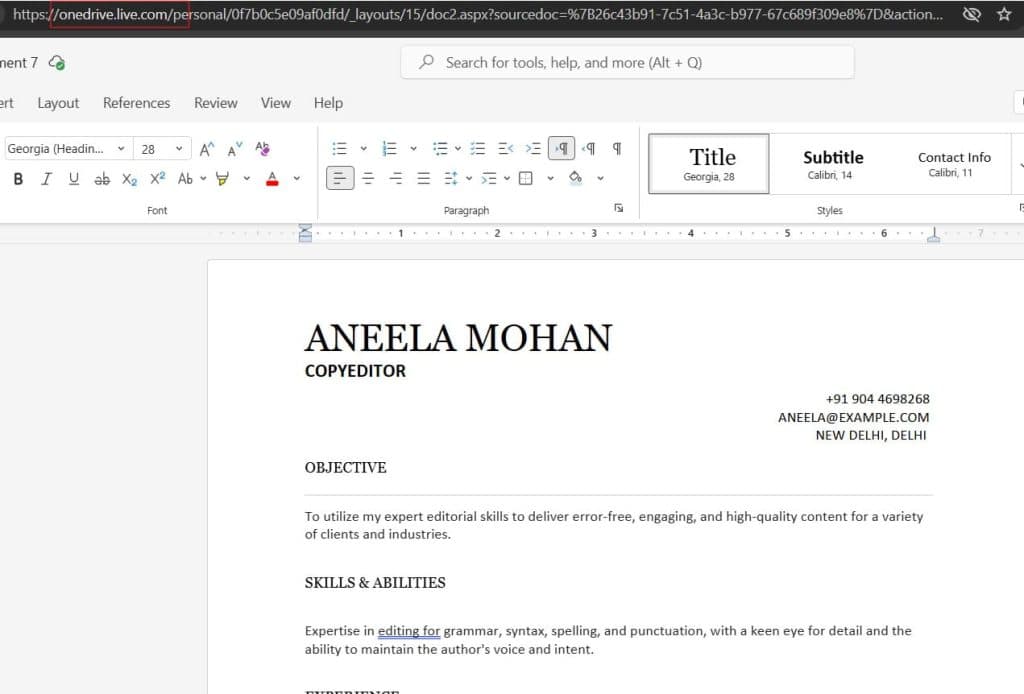
Your local Microsoft Word application will launch automatically on your computer. It will download a secure cached instance of the file from your OneDrive or SharePoint document library and open it right before your eyes. Check out the screenshot below for your reference.
You can launch straight into the desktop environment from your cloud dashboard using this workflow:
- Navigate to the File Library: Open your browser and log into your Microsoft 365 dashboard, navigating to either your personal OneDrive folder or your team’s SharePoint Online Document Library.
- Access the Context Menu: Locate the document you want to work on. Instead of clicking the file name directly (which automatically triggers the web viewer), hover your mouse over the file row and look for the three vertical or horizontal dots (More Actions) icon.
- Select Open Parameters: Click those three dots to open the contextual action menu. Hover your mouse over the Open selection.
- Choose the Desktop Execution: A flyout sub-menu will appear giving you two stark choices: Open in browser or Open in app. Click Open in app.
- Confirm Launch: Your local computer’s operating system will catch the command, bypass the web-based document renderer entirely, and launch the file instantly in your local Word processing program.
AutoSave and Real-Time Syncing
“If I open this online document on my desktop computer, don’t I lose the cloud syncing? Do I have to manually save it and re-upload it when I’m done?”
The short answer is: Absolutely not.
When you use the “Open in Desktop App” feature, you are utilizing an advanced cloud-linking protocol. You are not working on an isolated local copy; you are editing the exact same live file hosted on the web cloud.
How AutoSave Works on the Desktop
Look at the very top left corner of your desktop Word app’s window frame. You will notice a toggle switch labeled AutoSave, and it will be flipped to On.
Because AutoSave is functioning actively, look at how the application handles your modifications:
- Every single keystroke you make is automatically streamed back up to the cloud storage location in near real-time.
- Your teammates who are still looking at the document via Word Online will see your cursor moving through the paragraphs, labeled with your name, just as if you were working alongside them in the browser window.
- When you are done with your deep formatting sessions, you don’t need to hunt for a “Save As” button. Simply click the X to close the desktop window, and your work is safely tucked away in the cloud asset pool.
Troubleshooting Common Errors: When the App Refuses to Launch
Technology is brilliant when it functions properly, but errors happen. If you find yourself clicking “Open in Desktop App” and nothing happens, or an error code flashes, it’s typically down to a configuration misalignment. Here is how to fix the most common roadblocks:
Issue 1: “The browser doesn’t know how to open this link”
If you click the launch button and the browser simply sits there doing nothing, it means your operating system’s default protocol handlers are broken or missing.
- The Fix: Make sure that you actually have a valid, licensed version of the Microsoft 365 desktop suite installed locally on that specific computer. You cannot use this feature if you only own a web-only Microsoft 365 Basic subscription plan.
Issue 2: Account Credential Mismatch Error
You might see an error popup inside your desktop app claiming that you do not have permission to edit the file, or it opens up as a restricted “Read-Only” instance.
- The Fix: This happens when your web browser is logged into one Microsoft account (like a corporate consultant profile), while your local desktop Word application is authenticated to a different profile (like your personal Microsoft account). Click your profile picture in the upper right-hand corner of desktop Word, select Switch Account, and make sure the active login matches your web credentials exactly.
Issue 3: Pop-Up Blocker Interference
Highly restrictive browser security suites or third-party extensions can sometimes misinterpret the Word launch request as a malicious pop-up behavior.
- The Fix: Look at the right-hand edge of your browser’s address bar. If you see an icon with a red ‘X’ or a small shield icon, click it and explicitly choose “Always allow pop-ups and redirects from this site” for your company’s SharePoint or OneDrive domain.
Final Thoughts
Bridging the gap between Word Online and the Word Desktop app allows you to quickly collaborate on document outlines with your peers over the web, and then instantly transition over to your desktop machine when it’s time to bring out the heavy macro tools, complex indexes, or custom styling designs.
You may also like the following articles:

My name is Carissa Gudino and I am an expert in word online, using Word Online in my day-to-day tasks. In this blog, I will share with you tips and tutorials on how to use word online to its fullest potential. I work for various clients in various countries like the United States, Canada, the United Kingdom, Australia, New Zealand, etc. My tutorials are designed to help beginners, as well as more experienced users, learn new tricks and tips on Microsoft word online. Check out more.