
This comprehensive guide explores the structural architecture of Microsoft Word Online, explains why specific design elements are handled differently in cloud environments, and provides definitive, step-by-step methods to successfully add, view, and manage watermarks within the web interface.
How to Add Watermark in Word Online
Method 1: The Reading View and PDF Export Workaround
If you receive a document that already has a watermark—or if you want to verify that a watermark applied by a colleague is properly positioned—you will notice it does not show up in the default Editing View of Word Online.
Do not worry; the watermark has not been deleted or corrupted. It is simply resting in the background layer, ready to display when the document is rendered for distribution.
To view an existing watermark or check your work without launching the full desktop application, you can use the built-in rendering engines of the Reading View or the PDF generation tool.
Step-by-Step Instructions:
- Open Your Document: Launch your web browser, navigate to your Microsoft 365 dashboard, and open your target document in Word Online.
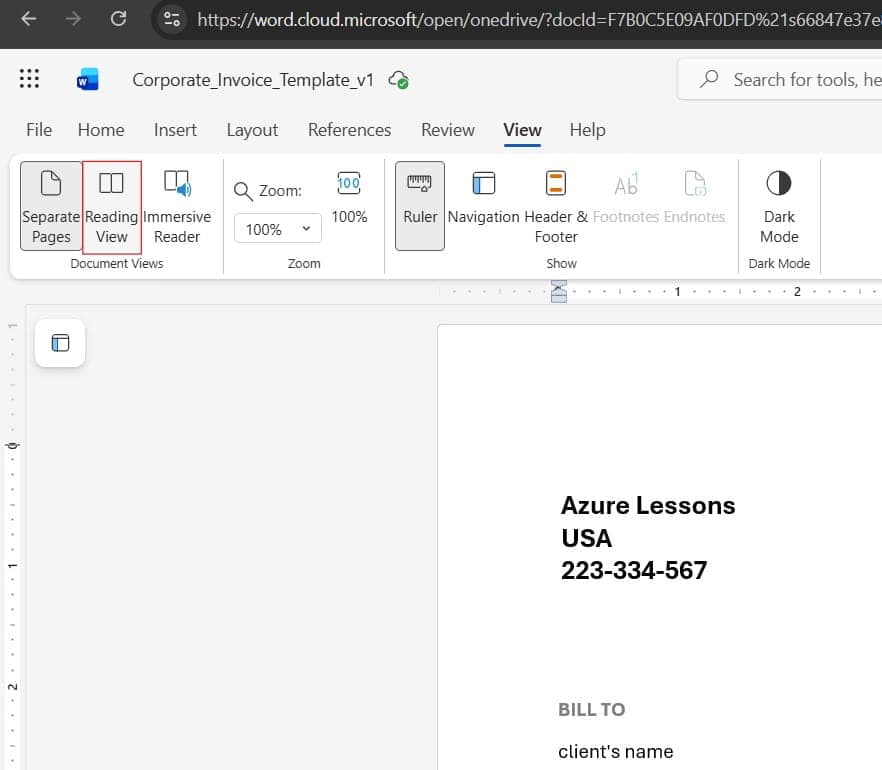
- Switch to Reading View: Look at the top control ribbon. Click on the View tab, and select Reading View from the leftmost side of the toolbar. Word Online will refresh and display the document in a read-only layout. In this view, the browser processes background visual elements, making your text or image watermark visible.
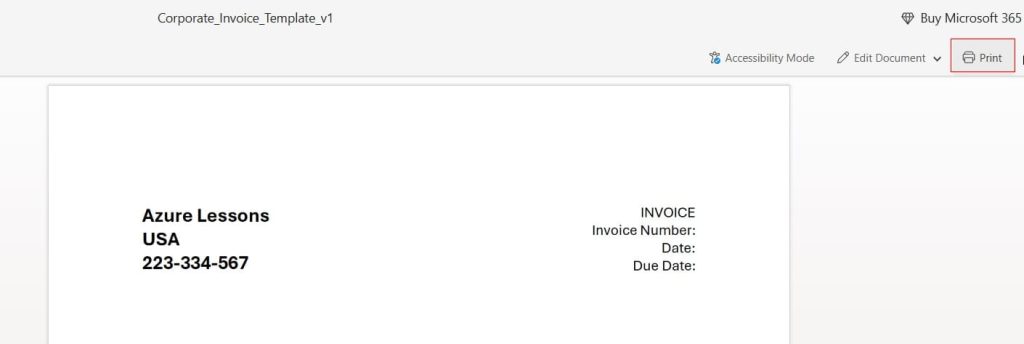
- Check the Print Preview Canvas: If you want to see exactly how the document will look when printed or saved, click on the File tab in the top-left corner, select Print, and then click Print this document.
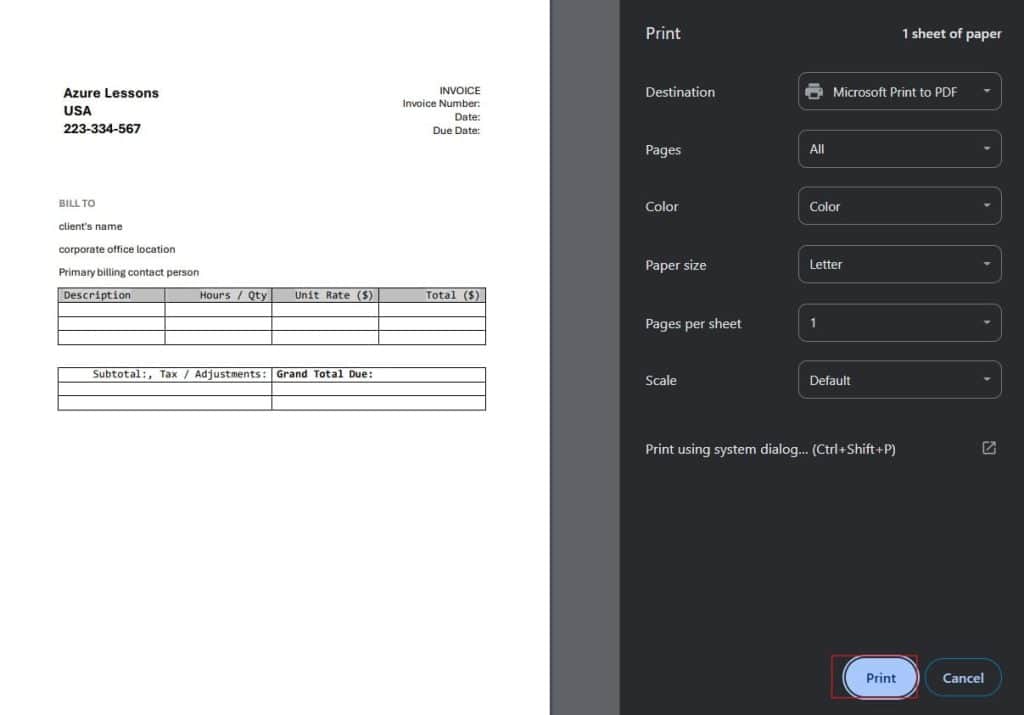
- Inspect the Rendered File: Word Online will initiate an automated server-side conversion to generate a print-ready PDF file. This preview screen will show your watermark perfectly centered behind your text paragraphs. From here, you can choose to print the document or download it as a PDF file with the background security markings fully intact.
Check out the screenshot below for your reference.
Method 2: Manually Creating a Text Watermark via the Header Layer
When you need to build a document from scratch entirely within the cloud interface and want to add a custom “DRAFT” or “INTERNAL ONLY” indicator, you can build it yourself using the Header and Footer architecture. Since a native watermark is essentially an objec