
In this article, I will break down the underlying architecture of Word Online Dictation, detail its complete command lexicon, walk through exact configuration steps, and share proven techniques to maximize transcription accuracy.
Word Online Dictation
How Word Online Dictation Works: The Cloud Speech Architecture
To get the most out of voice typing in Microsoft 365, it helps to understand how the browser coordinates with Microsoft Azure Cognitive Speech Services.
Unlike legacy client-side speech engines that required hours of manual voice training, Word Online processes your voice through cloud-hosted neural language models.
- Contextual Token Evaluation: The engine does not transcribe syllables in isolation. It evaluates the surrounding semantic context of the sentence to distinguish between homophones (such as their, there, and they’re, or site, cite, and sight) before printing text to the page.
- Continuous Streaming Recognition: Audio is streamed over encrypted WebSockets in small frames, allowing text to appear on the screen with minimal latency.
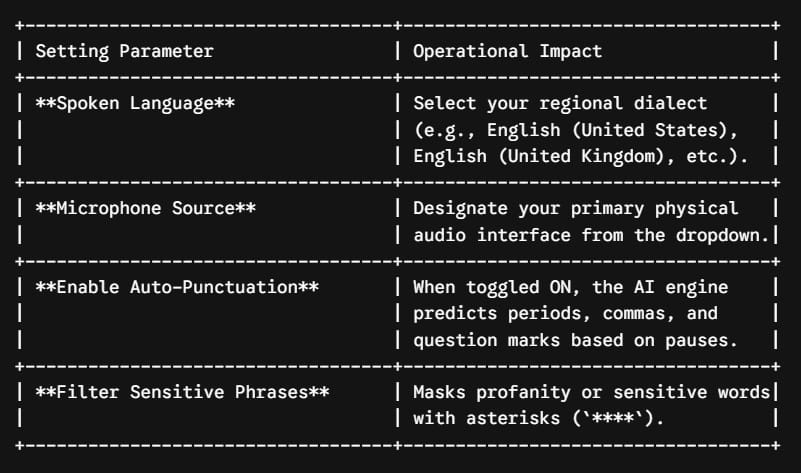
- Real-Time Punctuation Synthesis: When enabled, the cloud model analyzes vocal pitch inflections, sentence cadence, and natural pauses to automatically insert commas, periods, and question marks without requiring you to speak every punctuation symbol.
Prerequisites and Environment Configuration
Before initializing dictation, verify that your workstation environment satisfies these operational requirements:
- Active Microsoft 365 Subscription: The Dictate feature in Word for the Web is available to licensed Microsoft 365 personal, family, business, and enterprise accounts.
- Supported Modern Web Browsers: Use Microsoft Edge, Google Chrome, Mozilla Firefox, or Apple Safari with active Web Speech / WebRTC API support.
- Hardware Audio Input: A dedicated USB headset, directional condenser microphone, or properly calibrated laptop microphone array.
- Stable Network Connection: A broadband connection (minimum 1.5 Mbps upload) to ensure uninterrupted audio streaming to the Azure transcription endpoints.
How to Enable and Configure Dictation in Word for the Web
Enabling voice typing in Word Online requires just a few clicks. Let us examine the exact sequence to activate the tool and configure its recognition parameters.
Execution Sequence:
[1. Open Document] ---> [2. Home > Dictate] ---> [3. Grant Mic Access] ---> [4. Adjust Settings]
Step-by-Step Activation Workflow
- Open a blank or existing document in Word for the Web via
office.comor your corporate SharePoint library. - In the top navigation ribbon, select the Home tab.
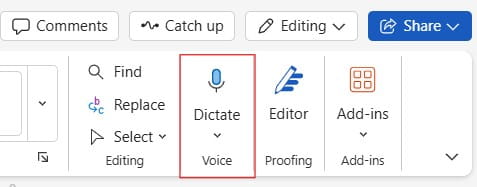
- On the right side of the ribbon, click the Dictate button (represented by a microphone icon).
- When prompted by your web browser, select Allow to grant Word permission to access your microphone.
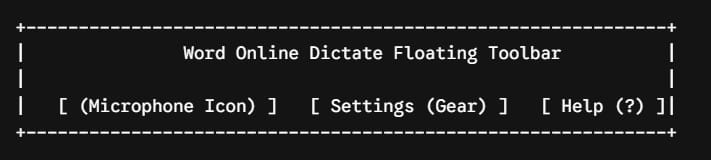
- The Dictation floating toolbar will appear, displaying a recording status indicator and microphone icon. Begin speaking when the indicator turns blue and displays a steady pulse.
See the screenshot below for reference.
Tuning Dictation Settings
Click the Gear icon (Settings) on the floating dictation toolbar to configure three critical engine preferences:
Voice Commands Lexicon: Punctuation, Formatting, and Symbols
While auto-punctuation handles standard drafting, mastering explicit verbal commands provides complete editorial control over your document. Below is the authorita